

F-Strings
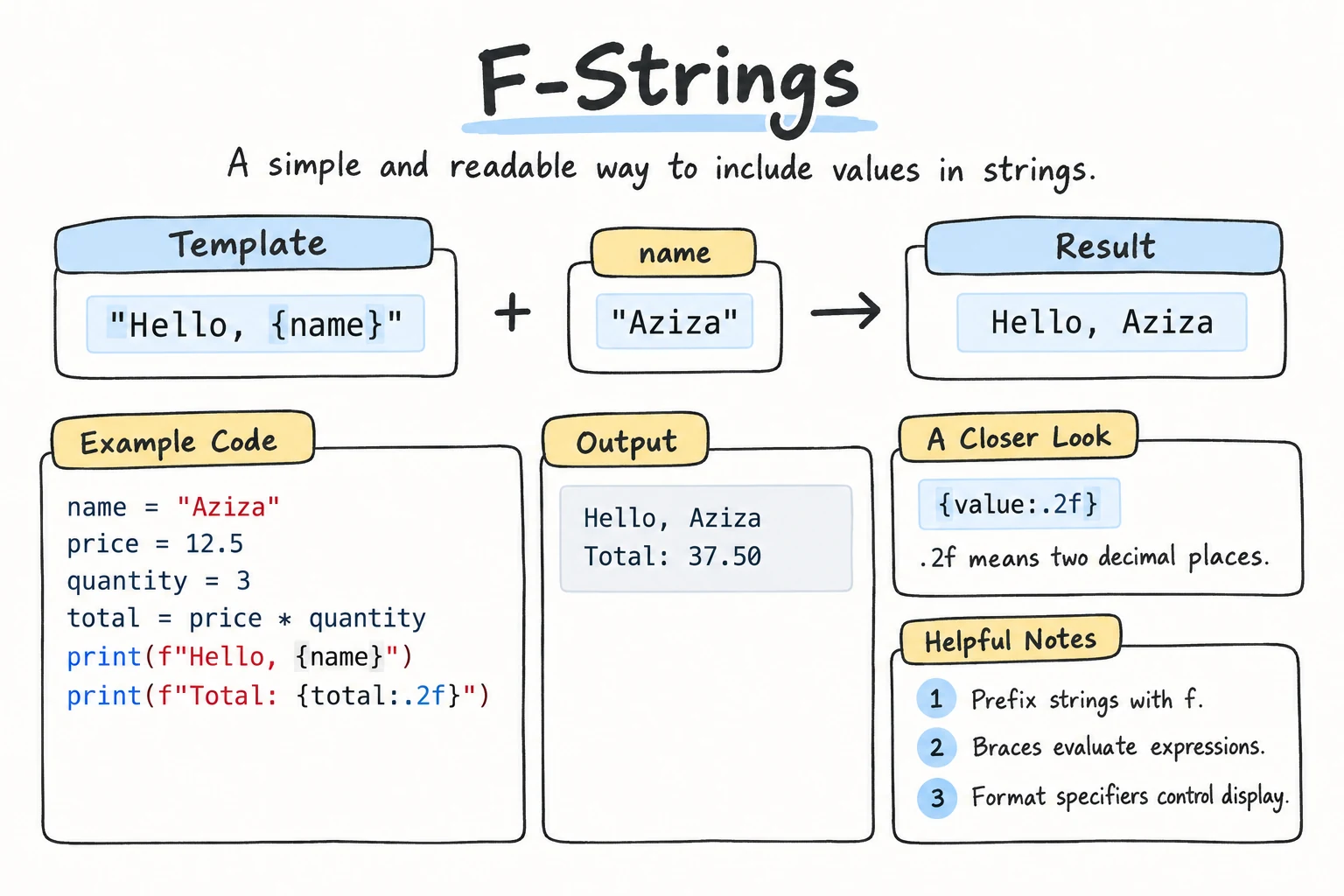
What you'll learn
- How to put values inside text with
f"...{value}..." - How to use expressions and method calls inside
{} - How to format numbers: decimal places, thousands separators, percentages, and padding
- How to line up text in columns
- The
{value=}and!rshortcuts for debugging
Why it matters
Programs constantly build text from data: "Hello, Aziza!", "Total: 125,000.00 som", "Progress: 75%". Joining pieces with + and str() gets messy fast. F-strings (formatted string literals) are the modern, readable way to do it, and they're what you'll see in almost all current Python code.
The basics
Put an f right before the opening quote, then write any value inside curly braces {}:
name = "Aziza"
age = 20

print(f"My name is {name} and I am {age} years old.")My name is Aziza and I am 20 years old.Compare the alternatives:
name = "Aziza"
age = 20

print("My name is " + name + " and I am " + str(age) + " years old.")  # concatenation
print("My name is", name, "and I am", age, "years old.")                # print arguments
print(f"My name is {name} and I am {age} years old.")                   # f-string
The f-string reads like the final sentence. You don't need str() and you don't need to manage spaces.
Don't forget the f
Without the f, the braces are just ordinary characters: "Hello, {name}" prints Hello, {name}.
Expressions inside braces
The braces can hold any expression, meaning anything that produces a value, not just a variable name:
price = 12500
quantity = 3
name = "dilnoza"

print(f"Total: {price * quantity}")
print(f"Hello, {name.title()}!")
print(f"Your name has {len(name)} letters.")Total: 37500
Hello, Dilnoza!
Your name has 7 letters.Keep the expressions short. If a calculation is complicated, store it in a variable first and put the variable in the f-string.
Quotes inside braces
If you call a method with a string argument inside an f-string, use the other kind of quote inside:
city = "Tashkent"
print(f"{city.replace('a', 'A')}")TAshkentPython 3.12 and newer also allow the same quotes inside, but using the other kind works in every version and is easier to read.
Formatting numbers
After the value, add a colon : and a format specification to control how it's displayed:
{value:format_spec}Decimal places: .2f
pi = 3.14159265
price = 7.5

print(f"{pi:.2f}")
print(f"{pi:.4f}")
print(f"{price:.2f}")3.14
3.1416
7.50.2f means "a float with 2 digits after the decimal point". It rounds for display without changing the variable. This also hides floating-point noise:
total = 0.1 + 0.2
print(f"{total:.2f}")0.30Thousands separators: , or _
population = 37543000
salary = 8250000.5

print(f"{population:,}")
print(f"{salary:,.2f}")
print(f"{population:_}")37,543,000
8,250,000.50
37_543_000If you need spaces as separators, which is common in Uzbekistan and much of Europe, format with , and then replace: f"{population:,}".replace(",", " ") gives 37 543 000.
Percentages: %
% multiplies by 100 and adds a percent sign. Like f, it shows 6 decimal places unless you give a precision, so {0.756:%} gives 75.600000%. Add one such as .1% or .0%:
done = 0.756
print(f"Progress: {done:.1%}")
print(f"Progress: {done:.0%}")Progress: 75.6%
Progress: 76%Leading zeros: 05d or 02d
order = 42
hour, minute = 9, 5

print(f"Order #{order:05d}")
print(f"Time: {hour:02d}:{minute:02d}")Order #00042
Time: 09:05d means a whole number (decimal integer), and 05 means "at least 5 characters wide, padded with zeros".
Alignment and width
Give a width to reserve space, and a direction to align within it:
| Spec | Meaning |
|---|---|
<10 | left-align in 10 characters |
>10 | right-align in 10 characters |
^10 | center in 10 characters |
*^10 | center, filling the space with * |
print(f"|{'tea':<10}|")
print(f"|{'tea':>10}|")
print(f"|{'tea':^10}|")
print(f"|{'tea':*^10}|")|tea |
| tea|
| tea |
|***tea****|Width and number formats combine. The width comes first, then the precision:
item1, price1 = "Green tea", 3500
item2, price2 = "Samsa", 12000
item3, price3 = "Lemonade", 9500.5

print(f"{'Item':<12}{'Price':>12}")
print("-" * 24)
print(f"{item1:<12}{price1:>12,.2f}")
print(f"{item2:<12}{price2:>12,.2f}")
print(f"{item3:<12}{price3:>12,.2f}")Item Price
------------------------
Green tea 3,500.00
Samsa 12,000.00
Lemonade 9,500.50Numbers are right-aligned by default and text is left-aligned, but being explicit makes tables predictable.
Debugging with =
Add = after an expression to print both the expression and its value. It's perfect for checking what's going on in your code:
width = 4
height = 2.5

print(f"{width=}")
print(f"{width * height=}")
print(f"{height = :.2f}")width=4
width * height=10.0
height = 2.50Seeing hidden spaces: !r
Add !r to show a value the way Python writes it in code, with quotes around strings. Extra spaces become easy to spot. The = form does this for strings automatically:
raw = "  Aziza "

print(f"Name: {raw}.")
print(f"Name: {raw!r}")
print(f"{raw=}")Name: Aziza .
Name: ' Aziza '
raw=' Aziza 'Literal braces
To show a real { or }, double it:
name = "set"
print(f"A {name} looks like {{1, 2, 3}}")A set looks like {1, 2, 3}Older styles you'll see
Tutorials, Stack Overflow answers and older code often use two earlier ways of formatting. Read them, but write f-strings.
name = "Aziza"
price = 12.5

print("Hello, {}! Total: {:.2f}".format(name, price))   # str.format()
print("Hello, %s! Total: %.2f" % (name, price)) # % formattingHello, Aziza! Total: 12.50
Hello, Aziza! Total: 12.50The {:.2f} in .format() uses the same format specs you learned above. In % formatting, %s stands for a string and %.2f for a float with 2 decimals.
Try it
Change the values and the format specs. Try :.0f, :>15,, or :.1%.
Common mistakes
1. Missing f
name = "Bekzod"
print("Hello, {name}!")Hello, {name}!Fix: f"Hello, {name}!".
2. Format spec on the wrong type
code = "42"
print(f"{code:.2f}")ValueError: Unknown format code 'f' for object of type 'str'.2f only works on numbers, and "42" is a string. Fix: convert first with float(code), which you'll learn in the next lesson.
3. A space before the colon
price = 5
print(f"{price :.2f}")   # works, but hard to read
It runs, but convention is {price:.2f} with no spaces. The one exception is the = debugging form, where spaces are kept in the output on purpose.
4. Formatting too early
price = 12.5
total = f"{price:.2f}"
print(total * 2)12.5012.50f"{price:.2f}" produces text, so * 2 repeats the string instead of doubling the number. Fix: keep numbers as numbers for calculations (total = price * 2) and format only when printing: print(f"{total:.2f}").
Practice
1. Introduction
With name = "Kamola", city = "Namangan", and year = 2003, print Kamola from Namangan was born in 2003. using one f-string.
Solution
name = "Kamola"
city = "Namangan"
year = 2003
print(f"{name} from {city} was born in {year}.")
2. Two decimals
Print the average of 87, 92, and 78 with exactly two decimal places: Average: 85.67.
Solution
average = (87 + 92 + 78) / 3
print(f"Average: {average:.2f}")
3. Big numbers
A company earned 1234567890.456 som. Print it three ways:
- with comma separators and 2 decimals,
- with space separators and no decimals,
- in millions with 1 decimal, like
1234.6 million.
Solution
revenue = 1234567890.456

print(f"{revenue:,.2f}")
print(f"{revenue:,.0f}".replace(",", " "))
print(f"{revenue / 1_000_000:.1f} million")1,234,567,890.46
1 234 567 890
1234.6 million4. Progress bar
Given done = 7 and total = 20, print a progress bar 20 characters wide, with # for done and . for remaining, followed by the percentage:
[#######.............] 35%Solution
done = 7
total = 20

bar = "#" * done + "." * (total - done)
print(f"[{bar}] {done / total:.0%}")
5. Receipt
Print this receipt with f-strings, so every price lines up on the right. Calculate the subtotal, 12% VAT, and the total from the item prices.
==============================
Plov x2              90,000.00
Green tea x3         10,500.00
Non x4               16,000.00
------------------------------
Subtotal            116,500.00
VAT 12%              13,980.00
TOTAL               130,480.00
==============================
Solution
plov = 2 * 45000
tea = 3 * 3500
non = 4 * 4000

subtotal = plov + tea + non
vat = subtotal * 0.12
total = subtotal + vat

width = 30
print("=" * width)
print(f"{'Plov x2':<16}{plov:>14,.2f}")
print(f"{'Green tea x3':<16}{tea:>14,.2f}")
print(f"{'Non x4':<16}{non:>14,.2f}")
print("-" * width)
print(f"{'Subtotal':<16}{subtotal:>14,.2f}")
print(f"{'VAT 12%':<16}{vat:>14,.2f}")
print(f"{'TOTAL':<16}{total:>14,.2f}")
print("=" * width)
The label column is 16 characters and the price column is 14, so each line is exactly 30 characters, matching the border.
Recap
- Write
f"...{expression}..."to put values into text. Don't forget thef. - Anything that produces a value can go inside
{}: variables, math, or method calls. {x:.2f}sets decimal places,{x:,}adds thousands separators, and{x:.1%}shows a percentage.{x:05d}pads with zeros.<,>, and^with a width align text in columns.{x=}prints the expression and its value,{x!r}shows quotes and hidden spaces, and{{ }}prints literal braces.- Format for display, and keep numbers as numbers for calculations.