

Running Python Code
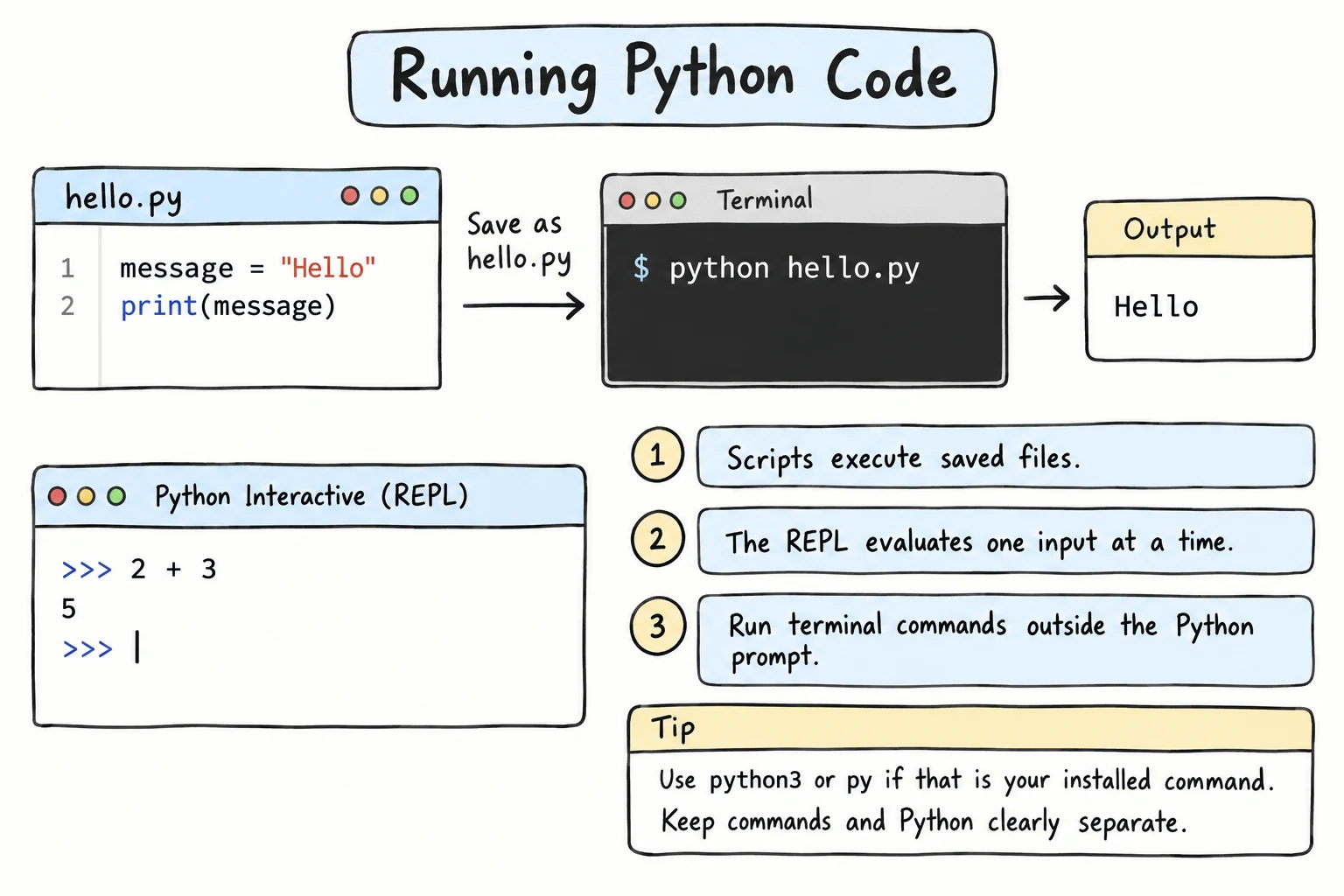
What you'll learn
- The difference between the interactive prompt and a script file
- How to create a
.pyfile and run it from the terminal - How to run a file from your code editor
- Why the terminal's current folder matters
- Which way to use for which job
Why it matters
You'll run code hundreds of times while learning. Knowing where your code runs, and what each way shows you, saves you from confusing moments like "my program printed nothing" or "Python can't find my file".
There are three common ways to run Python:
| Way | What it is | Best for |
|---|---|---|
| Interactive prompt (REPL) | Type one line, see the result immediately | Quick experiments, checking an idea |
| Script file | Save code in a .py file and run the whole file | Real programs you want to keep |
| In the browser | The editor on these lesson pages | Following the lessons, no install |
Your code editor is really a comfortable way to do the second one: it saves a file and runs it for you.
1. The interactive prompt (REPL)
REPL stands for Read-Eval-Print Loop: Python reads a line, evaluates it, prints the result, and loops back to wait for the next line.
Start it by typing python (Windows) or python3 (macOS and Linux) in a terminal:
>>> 7 * 6
42
>>> name = "Aziza"
>>> name
'Aziza'
>>> print("Hi,", name)
Hi, Aziza
A few things to notice:
- In the REPL, typing a value on its own (
7 * 6,name) shows it automatically. You don't needprint(). - Variables stay alive until you leave.
namewas still there on the next line. - For code that spans several lines, like an
if, the prompt changes to...so you can keep typing. Press Enter on an empty line to finish.
>>> if 7 > 5:
...     print("seven is bigger")
...
seven is bigger
Recent Python versions (3.13 and newer) have a colored prompt and let you edit whole blocks with the arrow keys. Python 3.14 also highlights your code in color as you type. Press ↑ to bring back earlier lines.
Leave with exit (or exit() on older versions), or press Ctrl + D (macOS and Linux) or Ctrl + Z, then Enter (Windows). Everything you typed is gone when you leave. The REPL is a scratchpad, not a place to keep work.
Get help without leaving
help(print) shows documentation for print. Press q to close it. dir("text") lists everything you can do with a string (a piece of text). Skip the names that start with underscores for now.
2. Script files
A script is a plain-text file with a .py extension that holds a whole program. Python runs it top to bottom, once, then exits.
Step 1: create a folder and a file
Make a folder for your course work, for example python-course in your Documents. In your editor, create a new file in it named hello.py with this content:
print("Hello from a file!")
print("This line runs second.")
print("And this one runs last.")
Save the file.
Give files short, descriptive names like hello.py or dice_game.py. Avoid names of Python's own modules, such as random.py or math.py. Later, when you import random, Python would load your file instead of its own module.
Step 2: open a terminal in that folder
The terminal always works inside one folder, called the current folder (or working directory). Use cd ("change directory") to move there:
cd Documents/python-courseCheck you're in the right place by listing the files. Use dir on Windows or ls on macOS and Linux. You should see hello.py.
Shortcut
In VS Code, choose Terminal → New Terminal. It opens already inside your project folder.
Step 3: run it
python hello.py(On macOS and Linux, use python3 hello.py. On Windows, py hello.py also works.)
Hello from a file!
This line runs second.
And this one runs last.
Change the file, save it, and run the same command again. That's the loop you'll use all the time: edit → save → run.
Scripts don't show values automatically
This is the most common surprise when moving from the REPL to files. Save this as values.py and run it:
x = 5
x * 2
print(x * 2)10Only one line of output appears. The line x * 2 is calculated and then thrown away. In a script, you only see what you print().
3. Running from your editor
Editors can run the current file for you:
- VS Code (with the Python extension): click the ▶ Run Python File button in the top-right corner. The output appears in the terminal panel at the bottom.
- Thonny: press F5 or click the green Run button.
- IDLE: open the file, then press F5 (Run → Run Module).
Behind the scenes, the editor runs python yourfile.py for you. If something doesn't work, running the command yourself in a terminal shows you exactly what's happening.
4. In the browser
The editors on these pages run Pyodide, real Python compiled to run inside your browser. They work like a small script file:
- The whole box runs top to bottom when you press ▶ Run.
- You only see what you
print(). - Each run starts fresh, so variables from the previous run are gone.
Which one should I use?
| I want to… | Use |
|---|---|
Check what 10 / 3 gives | REPL (or the browser) |
| Try a string method I just read about | REPL |
| Write a program I'll run again tomorrow | Script file |
| Do this course's examples and exercises | Browser, or a script file |
| Share code with someone | Script file |
A common habit is to keep both open: a script in your editor and a REPL in the terminal for trying out small pieces.
Common mistakes
1. "can't open file … No such file or directory"
python3: can't open file '/Users/you/hello.py': [Errno 2] No such file or directoryThe terminal's current folder isn't the folder that holds your file. Look at the path in the message: it shows where Python looked. Fix: cd into the right folder, or give the full path to the file.
2. Saving as hello.py.txt
Some text editors, like Notepad, add .txt automatically. The folder then holds a file that isn't really hello.py:
% ls
hello.py.txt
% python3 hello.py
python3: can't open file '/Users/you/python-course/hello.py': [Errno 2] No such file or directory
Fix: use a code editor, or choose All files when saving, and turn on file extensions in your file manager so you can see the real name.
3. Running before you save
Most editors run the file that's saved on disk, not what's on your screen. You changed the second line to print "Bye!", pressed Run, and still see the old output:
Hello from a file!
This line runs second.
And this one runs last.
Fix: save first (Ctrl + S, or ⌘ + S on macOS). An unsaved file usually shows a dot or ● on its tab. You can also turn on Auto Save in VS Code's File menu.
Practice
1. REPL vs. file
Type these three lines into the REPL, then save the same lines as compare.py and run it. What's different?
3 + 4
len("hello")
print("done")
Solution
REPL:
>>> 3 + 4
7
>>> len("hello")
5
>>> print("done")
done
Script:
doneThe REPL shows the value of every expression. A script only shows what you print().
2. Your first saved program
Create about_me.py that prints three lines: your name, your favorite food, and one thing you want to build with Python. Run it from the terminal and from your editor.
Solution
print("Name: Bekzod")
print("Favorite food: plov")
print("Goal: a program that tracks my expenses")
Run it with python about_me.py (or python3 about_me.py) from the folder where you saved it.
3. Fix the script
A classmate's script prints nothing. Fix it so it shows the total price.
price = 12
quantity = 3
price * quantity
Solution
price = 12
quantity = 3
print(price * quantity)
The last line calculated 36 but never showed it. Scripts only display what you pass to print().
4. Find the file
You saved hello.py in Documents/python-course, but running python hello.py gives No such file or directory. List two different ways to fix it.
Solution
- Move into the folder first:
cd Documents/python-course, then runpython hello.py. - Stay where you are and give the path:
python Documents/python-course/hello.py.
A third option is to open the folder in VS Code and use its built-in terminal, which starts in the right place.
5. The REPL remembered, the script didn't
Ali typed city = "Samarkand" in the REPL. Then he saved a script greet.py with just one line, print(city), and ran it in the terminal:
Traceback (most recent call last):
  File "/Users/ali/python-course/greet.py", line 1, in <module>
    print(city)
          ^^^^
NameError: name 'city' is not defined
Why does the script fail when the REPL knew city? Fix the script so it prints Samarkand.
Solution
city = "Samarkand"
print(city)SamarkandThe REPL and the script are separate runs of Python. A variable created in the REPL lives only until you leave that REPL. A script starts with nothing, so it must create every variable it uses. The same is true for each ▶ Run on these pages.
Recap
- The REPL (
>>>) runs one line at a time and shows values automatically. Great for experiments, but nothing is saved. - A script is a
.pyfile run top to bottom withpython file.py. It only shows what youprint(). - The terminal works inside a current folder. Python looks for your file there.
- Editors run your file for you, so remember to save first.
- Each run starts fresh: a script can't see variables from the REPL. Don't name your files after standard modules like
random.py.