

Installing Python
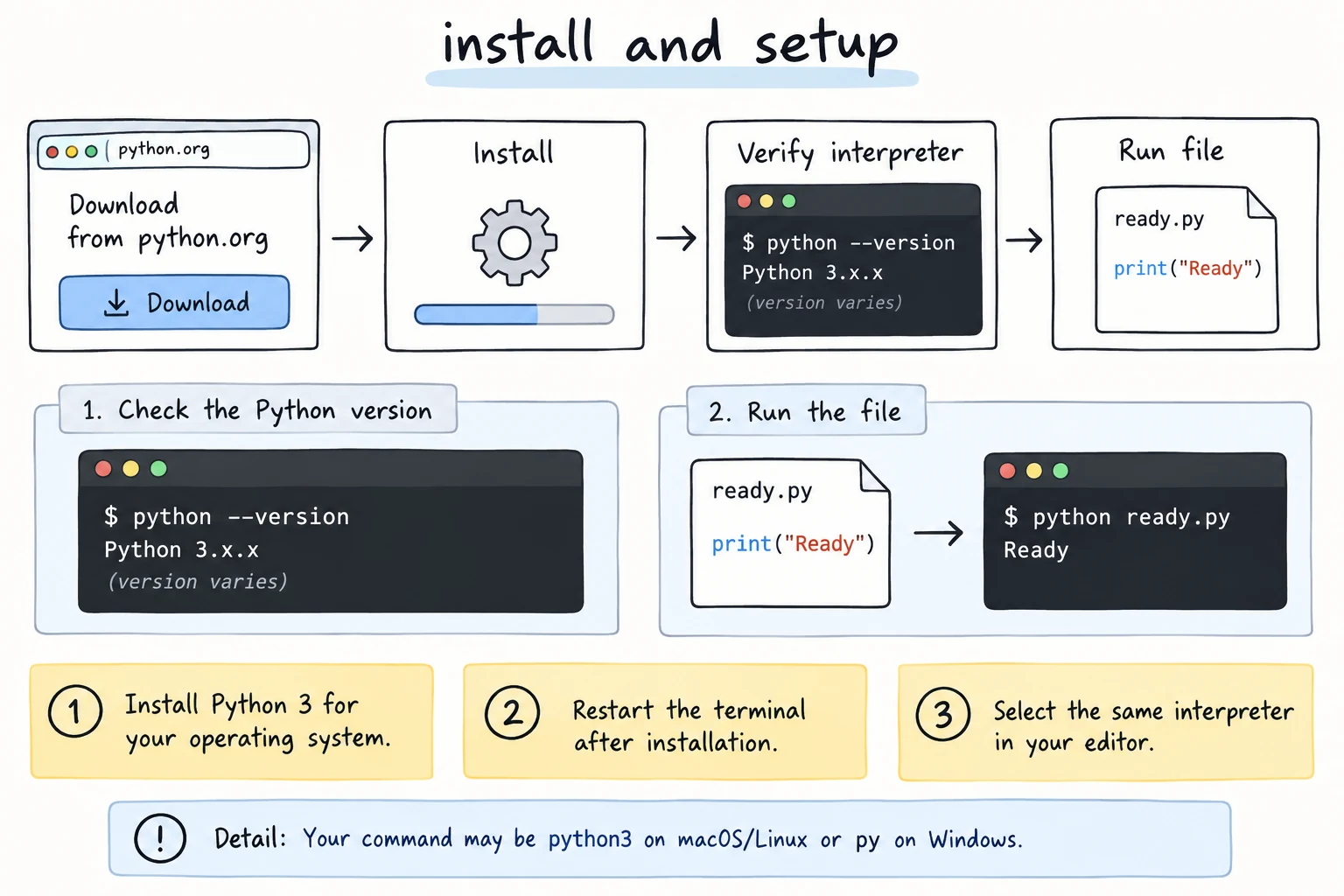
What you'll learn
- Whether you need to install anything yet
- How to install Python on Windows, macOS, or Linux
- How to check which version you have
- How to open Python's interactive prompt, and how to leave it
- Which code editor to pick
Why it matters
The editor on these pages is perfect for learning, but real programs live in files on your computer. They read your spreadsheets, rename your photos, and keep running long after you close the browser. For that you need Python installed, plus a code editor to write in.
Do you need to install it right now?
Not yet. Every example in the early lessons runs in your browser, on the lesson page or in the Playground. You can skip this lesson for now and come back later.
Install Python on your computer when you want to:
- write programs that are saved as files on your computer,
- work with real files and folders,
- run programs that take longer than a few seconds,
- follow along with later lessons in your own editor.
Which version?
Install the latest Python 3 release from python.org. This course targets Python 3.14. Almost every example also works on 3.10 or newer, so a slightly older Python that's already on your computer is fine to start with.
Not Python 2
Never install Python 2 for this course. It's been unsupported since 2020.
Windows
Windows now has an official tool called the Python Install Manager. It installs Python and keeps it up to date.
Install Python Install Manager in one of these two ways:
- Open the Microsoft Store, search for Python Install Manager, and click Install, or
- download it from python.org/downloads and run it.
Open Terminal (or PowerShell) from the Start menu.
Install the latest Python:
textpy install 3.14It may ask whether to add a folder to your PATH (the list of folders Windows searches for commands). This is optional. The
pythonandpycommands already work through Windows app execution aliases. Saying yes adds%LocalAppData%\Python\bin, which also gives you versioned commands such aspython3.14.Check it worked:
textpython --versionYou should see something like
Python 3.14.7. The last number changes with each bug-fix release.
Useful commands:
| Command | What it does |
|---|---|
py list | Show installed Python versions |
py install 3.14 | Install a version |
py or python | Start the default Python |
py help | Show all commands |
The older ".exe" installer
You may see tutorials that use the classic python-3.x.x-amd64.exe installer, where you must tick "Add python.exe to PATH". It still works for 3.14, but it's deprecated and won't be produced for Python 3.16 or later. Use the Install Manager instead.
macOS
macOS doesn't come with an up-to-date Python you should use.
Go to python.org/downloads and download the macOS installer (a
.pkgfile). It works on both Apple Silicon and Intel Macs.Open the file and follow the steps.
When it finishes, a Finder window opens. Double-click Install Certificates.command. This lets Python make secure (HTTPS) connections.
Open Terminal (press ⌘ + Space and type Terminal) and check:
textpython3 --version
On macOS, the command is python3, not python. When a lesson says python, type python3.
Using Homebrew instead
If you already use Homebrew, brew install python works too. If you don't know what Homebrew is, use the python.org installer.
Linux
Most Linux systems already have Python 3. Open a terminal and check:
python3 --versionIf it's missing, install it with your package manager:
| Distribution | Command |
|---|---|
| Ubuntu, Debian, Mint | sudo apt install python3 |
| Fedora | sudo dnf install python3 |
| Arch | sudo pacman -S python |
Your distribution's version may be a little older than 3.14. That's fine for learning. Don't remove or replace the system Python, because parts of the operating system depend on it.
Check that it works: the interactive prompt
Type python (Windows) or python3 (macOS and Linux) with nothing after it, and press Enter:
Python 3.14.7 (main, ...) on darwin
Type "help", "copyright", "credits" or "license" for more information.
>>>
The >>> is the interactive prompt, also called the REPL. You type one line of Python, press Enter, and see the result right away. Try it:
>>> 2 + 3
5
>>> print("It works!")
It works!
To leave, type exit and press Enter (on Python 3.12 and older, type exit()), or press Ctrl + D (macOS and Linux) or Ctrl + Z, then Enter (Windows).
You'll use the REPL and learn to run .py files in the next lesson.
Choosing a code editor
You can write Python in any plain-text editor, but a code editor colors your code, catches mistakes early, and runs programs with one click.
| Editor | Good for | Notes |
|---|---|---|
| Visual Studio Code | Most learners | Free. Install the Python extension from Microsoft. It's the most widely used choice. |
| Thonny | Absolute beginners | Free and very simple, with a built-in step-by-step debugger. It can come with Python bundled. |
| IDLE | Quick start with nothing extra | Comes with Python from python.org. It's basic but works right away. |
| PyCharm | Larger projects later | Powerful, but has more to learn. |
Recommendation: if you're unsure, use VS Code with the Python extension. If it feels overwhelming, start with Thonny.
VS Code: pick the right Python
If you have more than one Python on your computer, VS Code may run your file with the wrong one. Open the Command Palette (Ctrl + Shift + P, or ⌘ + Shift + P on macOS), run Python: Select Interpreter, and choose the version you installed. The chosen version is shown in the status bar at the bottom right when a .py file is open. Click it to change it again.
Which Python is running?
This short program prints the version and location of the Python that runs it. Try it on the page, then save it as a file on your computer and run it there too:
import sys

print("Version:", sys.version.split()[0])
print("Location:", sys.executable)
On the page, you'll see the version of the in-browser Python (Pyodide). On your computer, you'll see your installed version and where it lives on disk.
Common mistakes
1. "python is not recognized", or the Store opens (Windows)
'python' is not recognized as an internal or external command,
operable program or batch file.
Windows can't find the python command. On some computers, typing python opens the Microsoft Store instead, because Windows has placeholder shortcuts. Fix:
- Make sure you installed the Python Install Manager (see above).
- Open Start → Manage app execution aliases and check that the Python (default) aliases are turned on. If they already are, turn them off and on again to refresh them. If the Store still opens, turn off the python.exe and python3.exe entries that belong to App Installer.
- Close and reopen the terminal. Changes only apply to new windows.
- Still stuck? Check that your PATH contains
%UserProfile%\AppData\Local\Microsoft\WindowsApps. Windows adds it by default, and the aliases stop working if it's removed.
2. command not found: python (macOS or Linux)
% python --version
zsh: command not found: python
On Linux the shell usually says bash: python: command not found. Fix: use python3. On these systems, python often doesn't exist, or it's an old Python 2.
3. Typing terminal commands inside Python
>>> python hello.pySyntaxError: invalid syntaxAt the >>> prompt you're inside Python, and python hello.py isn't Python code. Fix: leave with exit, then run the command in the normal terminal. The prompt tells you where you are:
| Prompt | You are in… | Type |
|---|---|---|
>>> | Python (REPL) | Python code, e.g. print("hi") |
$, %, or PS C:\> | Terminal / shell | Commands, e.g. python hello.py |
Practice
1. Check your version
Install Python (or find the one you have) and run the version command. Write down the exact version number.
Solution
- Windows:
python --version(orpy --version) - macOS / Linux:
python3 --version
Output looks like Python 3.14.7. The first two numbers (3.14) are the version that matters.
2. REPL calculator
Open the interactive prompt and use it to calculate:
365 * 24(hours in a year)2 ** 10(**means "to the power of")
Then leave the prompt.
Solution
>>> 365 * 24
8760
>>> 2 ** 10
1024
>>> exit
In the REPL you don't need print() to see a result. It shows the value of each expression automatically. This only happens in the REPL, not in .py files.
3. Where are you?
For each line, decide whether it should be typed at the terminal prompt or the Python >>> prompt:
python3 --versionprint("hello")py list10 / 4
Solution
- Terminal: it runs the
python3program. - Python: it's Python code.
- Terminal: it's a Python Install Manager command (Windows).
- Python: it's a Python expression, and the result is
2.5.
4. Two Pythons
Run the Which Python is running? program on this page, then save it as which_python.py on your computer and run it with python which_python.py (or python3 which_python.py). Compare the two outputs. Why are they different?
Solution
The browser version runs Pyodide, so its location is a virtual path inside the browser. Your computer runs the Python you installed, so the location is a real folder, for example C:\Users\you\AppData\Local\Python\... or /Library/Frameworks/Python.framework/.... The version numbers may differ too. Different Pythons can be installed side by side, and sys.executable tells you which one is running your code.
5. Fix the session
A learner on a Mac typed these lines and got two errors. For each error, say what went wrong and what they should type instead.
% python --version
zsh: command not found: python
% python3
>>> python3 hello.py
SyntaxError: invalid syntax
Solution
- On macOS the command is
python3, so typepython3 --version. python3worked and opened the REPL. Thenpython3 hello.pywas typed at the>>>prompt, where only Python code works. Leave withexit, then typepython3 hello.pyat the%terminal prompt.
The prompt at the start of the line (% or >>>) tells you whether you're in the terminal or inside Python.
Recap
- Early lessons run in the browser, so install Python when you want to work with files on your own computer.
- Windows: Python Install Manager →
py install 3.14→ check withpython --version. - macOS: python.org installer → check with
python3 --version. - Linux: usually already installed →
python3 --version. Don't replace the system Python. >>>means you're inside Python. Leave withexit.- Pick an editor: VS Code with the Python extension, or Thonny for a gentler start.